
If you own an iPhone 13 Pro or later, or work with professional cameras, you’ve probably shot video in Apple ProRes. This codec delivers stunning image quality and smooth editing in Final Cut Pro, but it comes with two major headaches: massive file sizes and poor playback compatibility. A one hour 1080p ProRes clip can take up 66 GB; shoot in 4K ProRes, and you’re looking at 265 GB per hour. Worse still, most media players, smart TVs, Android phones, and even Windows computers cannot play ProRes files natively. You’ll often see an error message: “Codec not supported” or “File format not recognized.”
That’s why learning how to convert 4K ProRes video to H.264/H.265 MP4 format is essential. Converting ProRes to MP4 not only shrinks file sizes by 50-80% but also makes your videos playable on virtually any device-iPhone, iPad, Android, smart TV, game console, or media player. In this guide, we’ll show you the best tool for the job, Acrok Video Converter Ultimate, and walk you through the exact steps to convert 4K ProRes to H.264 or H.265 MP4 without losing noticeable quality.
Why ProRes videos struggle to play on most devices
Apple ProRes is an intermediate codec designed for editing, not for distribution. While it’s a dream in post‑production workflows (Final Cut Pro, Premiere Pro, DaVinci Resolve), it becomes a nightmare when you try to share or play back your finished video.
Here are the most common problems you face with raw ProRes files:
- Incompatibility with standard media players – Windows Media Player, QuickTime (older versions), VLC (sometimes requires extra configuration), and built‑in TV players often fail to decode ProRes. You may hear audio but see a black screen, or get a “corrupted file” warning.
- No support on mobile devices – Even the latest Android phones do not include ProRes decoders. iPhones can record ProRes but cannot play back high‑bitrate ProRes files smoothly without stuttering. iPads fare slightly better, but many third‑party apps still reject ProRes.
- Smart TVs cannot open ProRes – Plug a USB drive with a 4K ProRes video into your Samsung, LG, or Sony TV. Nine times out of ten, the TV will say “Unsupported format.” You’ll need to transcode to MP4 first.
- Upload failures on social platforms – YouTube, Facebook, Instagram, and Twitter do not accept ProRes as a direct upload. You must convert to H.264 or H.265 MP4 before sharing.
The solution is simple: convert 4K ProRes video to H.264 or H.265 MP4 format. Once converted, your video becomes universally compatible, drastically smaller, and ready for any modern device or platform.
H.264 vs H.265: Which MP4 format should you choose?
When converting ProRes to MP4, you have two main codecs: H.264 (AVC) and H.265 (HEVC). Both produce playable MP4 files, but they have different strengths.
| Feature | H.264 MP4 | H.265 MP4 |
|---|---|---|
| Compatibility | Excellent – works on every device made after 2010 | Good – works on most devices from 2016 onward (iPhone 6s/Android 7+) |
| Compression efficiency | Good (about 1/10th of ProRes size) | Better (about 1/15th of ProRes size, same quality) |
| 4K & HDR support | Limited (high bitrate needed) | Excellent (native 10‑bit, HDR10, HLG) |
| Hardware decoding | Universal | Modern GPUs/phones support it |
Recommendation: For maximum compatibility, choose H.264 MP4. For better quality at smaller file sizes (especially for 4K content), choose H.265 MP4. Many professionals convert ProRes to H.265 MP4 for archiving and to H.264 MP4 for sharing with clients who may have older devices.
Best software to convert 4K ProRes to MP4: Acrok Video Converter Ultimate
To handle 4K ProRes files properly, you need a converter that supports all ProRes variants (ProRes 4444, ProRes 422 HQ, ProRes 422, ProRes 422 LT, ProRes Proxy) and offers hardware acceleration to speed up the process. After testing several tools, we recommend Acrok Video Converter Ultimate.
Acrok Video Converter Ultimate is a professional‑grade converter available for both Windows and Mac. It can decode any ProRes file and transcode it to H.264 or H.265 MP4, MOV, AVI, MKV, or even device‑specific presets (iPhone, iPad, Samsung, PlayStation, Xbox). Key features include:
- Full ProRes support – Works with 4K ProRes recorded on iPhone 13/14/15/16 Pro, as well as ProRes from professional cameras.
- Up to 5X faster conversion – Thanks to GPU hardware acceleration (Intel QSV, NVIDIA NVENC, AMD VCE).
- Batch processing – Convert hundreds of ProRes clips at once.
- Lossless quality option – Use Constant Quality (CRF) mode to retain near‑original visual fidelity.
- Built‑in editing – Trim, crop, add subtitles, or adjust parameters before conversion.
- Download videos – Bonus feature to download from YouTube, Facebook, etc. (though not needed for ProRes conversion).
With Acrok, you can easily convert ProRes video to MP4 format in just a few clicks. Below is a step‑by‑step guide.
Step‑by‑step guide: Convert ProRes to MP4 using Acrok Video Converter Ultimate
The following instructions work for both Mac and Windows versions of Acrok Video Converter Ultimate. We’ll cover two scenarios: (1) decoding ProRes to MP4 for better compatibility, and (2) optionally encoding other formats to ProRes (for editing).
Part 1: How to convert ProRes to H.264/H.265 MP4 for universal playback
Step 1: Download and install Acrok Video Converter Ultimate
Visit the official Acrok website, download the version for your operating system (Windows 11/10 or macOS), and install it. Launch the program.
Step 2: Add your 4K ProRes files
Click the “Add Files” button (or drag and drop) to import your ProRes .mov or .mxf files. Acrok supports batch conversion, so you can add an entire folder of 4K ProRes clips. Each file appears as a separate entry.
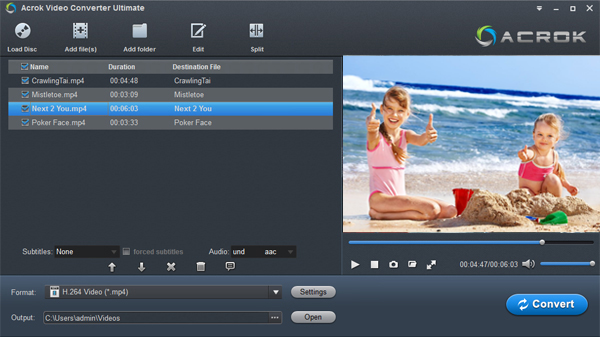
Step 3: Select MP4 as the output format
Click the “Target Format” button (or the profile icon) on the lower left. A profile window opens. Navigate to General Profiles → MP4 Video. You will see two main options:
- H.264 + MP4 – Choose this for maximum device compatibility.
- H.265 + MP4 – Choose this for smaller file sizes at the same quality (best for 4K).
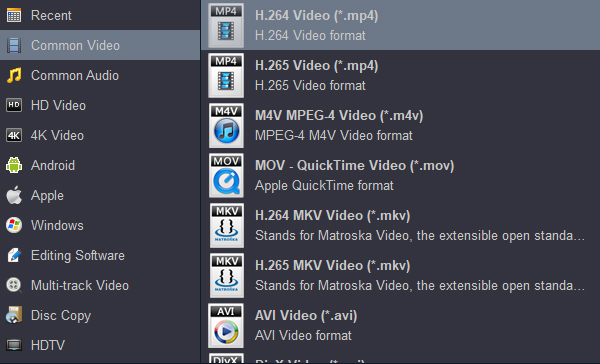
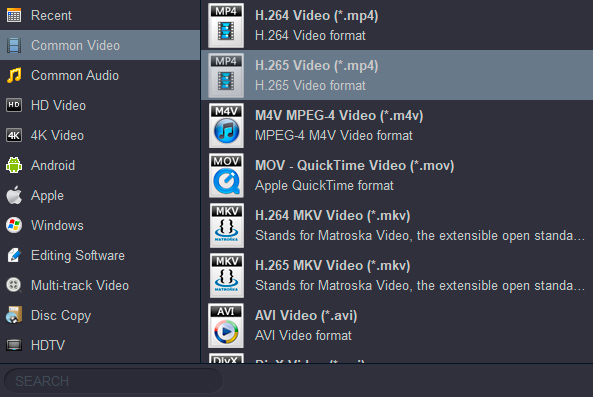
If you prefer a device‑specific preset, you can scroll to Apple Device or Android Device and pick your exact model (e.g., iPhone 15 Pro, Samsung Galaxy S24). Acrok will automatically choose the optimal codec and settings.
Step 4: (Optional) Adjust video parameters for quality or size
Click the “Settings” gear icon next to the profile name. Here you can fine‑tune:
- Resolution – Keep “Same as source” for 4K (3840×2160). You can downscale to 1080p if you need even smaller files.
- Frame rate – Keep “Same as source” (usually 30, 60, or 24 fps).
- Bitrate / Quality – For H.264, use a variable bitrate of 20–35 Mbps for 4K. For H.265, 15–25 Mbps is enough for visually lossless quality. Alternatively, use Constant Quality (CRF) mode with a value of 18–20.
- Audio – Keep original or convert to AAC 256 kbps for compatibility.
Click OK to save.
Step 5: Start the conversion
Click the “Browse” button to choose an output folder, then click the “Convert” button. Acrok will start transcoding your 4K ProRes to MP4. Thanks to hardware acceleration, a 10‑minute 4K ProRes file typically converts in 3‑5 minutes.
Step 6: Enjoy universal playback
Once finished, click “Open”. Your new MP4 files will play on any device: iPhone, iPad, Android, Windows PC, Mac, Smart TV, Xbox, PlayStation, and you can upload them directly to YouTube, Facebook, or Twitter without issues.
Part 2: (Bonus) Convert other video formats to ProRes for editing in Final Cut Pro
Sometimes you need to go the other way: convert 4K MTS, AVCHD, MKV, or H.264 to ProRes so you can edit in Final Cut Pro with maximum performance. Acrok Video Converter Ultimate also supports encoding to ProRes. Here’s how:
Step 1: Add your source video (e.g., a 4K MKV or MP4 file).
Step 2: Click “Target Format” → Apple Device → ProRes Video. Then choose the ProRes variant you need:
- ProRes 4444 – For videos with alpha channel (transparency) or very high color depth.
- ProRes 422 HQ – For near‑lossless editing of 4K footage.
- ProRes 422 – Standard high‑quality editing.
- ProRes 422 LT – Smaller files for faster editing on less powerful computers.
- ProRes Proxy – For offline editing with very low bitrate.
Step 3: Click “RUN” to convert. The output will be a ProRes .mov file ready for Final Cut Pro, Motion, or Compressor.
Why Acrok Video Converter Ultimate beats free converters like HandBrake
You might be tempted to use a free tool like HandBrake for ProRes conversion. However, many users report issues:
- Jerky motion – HandBrake’s ProRes decoder sometimes drops frames or produces stuttering pans.
- No 4:2:2/4:4:4 support – HandBrake strips chroma subsampling, degrading color accuracy.
- Very slow – Without proper hardware acceleration, converting 4K ProRes can take hours.
Acrok Video Converter Ultimate is optimized specifically for ProRes. It preserves 4:2:2 and 4:4:4 color, supports hardware decoding/encoding of ProRes (on compatible systems), and produces smooth, artifact‑free output. The small investment in software saves you hours of frustration and maintains your video’s professional quality.
Real‑world example: From 265 GB to 3 GB
Let’s look at a real example. An iPhone 13 Pro shoots 4K ProRes at 30 fps. One hour of footage is about 265 GB. Using Acrok Video Converter Ultimate to convert that to H.265 MP4 at 25 Mbps (CRF 20) results in a file of roughly 11 GB-a 96% size reduction. Convert to H.264 MP4 at 35 Mbps, and you get about 15 GB. Both output files play perfectly on any modern TV, phone, or computer, while the original 265 GB ProRes file is only useful for editing.
Tips to maintain quality when converting ProRes to MP4
Although MP4 conversion is lossy, you can keep the video visually lossless by following these guidelines:
- Use a high bitrate – For 4K H.264, don’t go below 30 Mbps. For H.265, 20 Mbps is safe.
- Keep original resolution – Downscaling from 4K to 1080p reduces quality permanently.
- Match frame rate – Never change 30 fps to 24 fps unless you want judder.
- Use constant quality (CRF) mode – This gives the best balance of quality and file size.
- Keep the original ProRes master – Always archive the raw ProRes file. The MP4 is for distribution only.
Frequently Asked Questions
Q: Can I convert 4K ProRes to MP4 on Windows?
Yes. Acrok Video Converter Ultimate runs perfectly on Windows 10/11. It includes all the necessary ProRes decoders natively.
Q: Will I lose Dolby Vision or HDR when converting ProRes to MP4?
Acrok supports HDR passthrough (HDR10, HLG, Dolby Vision) when you choose the H.265 codec and enable “Copy HDR metadata.” Check the settings before conversion.
Q: Can I convert multiple ProRes files at once?
Absolutely. Acrok supports batch conversion. Just add all your files, select the same output format, and click “RUN.” Each file will be converted independently.
Q: How do I convert ProRes 4444 with alpha channel to MP4?
Standard MP4 does not support alpha channels (transparency). Convert to ProRes 4444 .mov if you need alpha. For MP4, you can overlay the alpha as a separate track or use a different container like HEVC in .mp4 with alpha (very limited support). Acrok can preserve alpha when exporting to ProRes 4444.
Conclusion
Recording video in Apple ProRes is great for editing, but it leaves you with files that are too large and too incompatible for everyday use. By learning how to convert 4K ProRes video to H.264/H.265 MP4 format, you can solve both problems at once. Acrok Video Converter Ultimate makes the process fast, easy, and high‑quality-whether you need to share a family video on WhatsApp, upload a clip to YouTube, or send a rough cut to a client who uses Windows.
Don’t let ProRes files sit uselessly on your hard drive. Convert them to MP4 today and enjoy smooth playback on any smartphone, tablet, TV, or media player. Download Acrok Video Converter Ultimate and follow the steps above-you’ll be amazed at how simple and effective the conversion can be.
Tags: best prores to h.264 mp4 converter, convert prores video to mp4, apple prores to h.265 converter, how to convert 4k prores to mp4, encode prores video to mp4 on mac

Leave a Reply