

M3U8 is a widely used streaming format for delivering video content across the internet. However, due to its fragmented nature consisting of multiple TS segments, it is not ideal for direct editing in professional video software like Final Cut Pro, Adobe Premiere Pro, or DaVinci Resolve. ProRes, developed by Apple, is a high-quality intermediate codec specifically designed for video editing, offering an exceptional balance of image quality and editing performance. This article explores various methods to convert M3U8 streams to ProRes format, with a particular focus on recommending Acrok Video Converter Ultimate as the most reliable solution.
Why Converting M3U8 to ProRes Online Is Challenging
Before diving into the specific tools, it is important to understand why finding a truly free online converter that supports M3U8 to ProRes conversion is difficult. ProRes files are inherently large, and the transcoding process is computationally intensive, requiring significant server resources. As a result, most free online converters either do not support ProRes output at all or impose severe restrictions on file size and processing time. Nevertheless, this article presents the best available options, ranging from free online tools to more robust desktop software.
Recommended Free Online Converters
1. Convertr.org
Overview: Convertr.org is a completely free online file conversion tool that supports video, audio, and image formats. It operates directly in your browser without requiring any software installation.
Supported Formats: Convertr.org can convert various video formats, including AVI, FLV, MKV, MOV, WEBM, and WMV. However, it is important to note that ProRes is not explicitly listed among its output options. This limitation means Convertr.org is best suited for converting M3U8 to other intermediate formats (such as MOV) as an intermediate step before further encoding to ProRes.
Pros:
- Completely free with no hidden costs – All features are available at no charge.
- No registration required – You can start converting immediately.
- No queue waiting – Files are processed instantly upon upload.
- Supports batch conversion – Multiple files can be processed simultaneously.
- Ad-free experience – The site maintains a clean interface without intrusive advertisements.
Cons:
- Does not support ProRes encoding – This is the most significant limitation for professional editing workflows.
- No explicit file size limit mentioned – While some users have successfully converted files over 100 MB, larger files may encounter stability issues.
- Limited customization options – Only basic encoding parameters are available for adjustment.
- File uploaded to server – For users concerned about privacy, files must be uploaded to external servers rather than being processed locally.
Conclusion: Convertr.org is an excellent choice for quickly converting M3U8 files to standard formats like MOV or MP4. However, it falls short of directly producing ProRes output, making it unsuitable for those who specifically need ProRes encoding.
2. 88box M3U8 to MP4 Tool
Overview: 88box is a browser-based online tool designed specifically for converting M3U8 playlists to MP4 format. Unlike many online converters, it processes all conversions locally within your browser using ffmpeg.wasm technology.
Supported Formats: This tool is specifically designed for converting M3U8 to MP4, with support for various conversion modes including fast remux (copy) and full re-encoding. However, similar to Convertr.org, ProRes is not available as a direct output option.
Pros:
- No file upload required – All conversion operations are performed locally in your browser, offering superior privacy protection.
- Fast conversion speed – The recommended “fast remux” mode can achieve near-instantaneous conversion for small files by copying video streams directly.
- Three conversion modes – Users can choose between fast remux, always re-encode, or pipe mode to handle various compatibility scenarios.
- Automatic temporary file cleanup – The tool automatically deletes temporary data after conversion to free up storage space.
- Detailed conversion logging – FFmpeg logs are available for troubleshooting and transparency.
- Customizable concurrent downloads – Users can adjust the number of parallel download threads based on their network conditions and computer capabilities.
Cons:
- No ProRes output support – The tool only outputs MP4 format, which is not ideal for professional editing workflows.
- Browser memory limitations – When processing videos with an extremely large number of segments, browser memory may become exhausted.
- CORS compatibility issues – Some M3U8 sources may trigger CORS/COOP/COEP errors due to server-side restrictions.
- Windows and Mac only – Requires a desktop browser with adequate processing power.
Conclusion: 88box is a privacy-focused, user-friendly tool for converting M3U8 to MP4. However, like Convertr.org, it cannot produce ProRes output directly, making it a limited solution for professional video editors.
Comparison of Free Online Converters
| Feature | Convertr.org | 88box |
|---|---|---|
| ProRes Output Support | ❌ No | ❌ No |
| Local Processing | ❌ Upload required | ✅ Local browser |
| File Size Limit | ~100 MB+ | Browser memory bound |
| Registration Required | ❌ No | ❌ No |
| Batch Conversion | ✅ Yes | ❌ Single file |
| Privacy | ❌ Server upload | ✅ Local only |
Why Online Converters Cannot Replace Professional Software
The fundamental limitation of all online converters is their inability to output ProRes format. ProRes is a computationally heavy codec that requires significant encoding resources. Most free online services simply cannot afford to offer ProRes encoding due to the associated server costs. Additionally, online converters typically impose file size restrictions, process slowly due to network bottlenecks, and raise privacy concerns since files must be uploaded to third-party servers. For these reasons, if you genuinely need to convert M3U8 to ProRes, desktop software is the superior choice.
Recommended Solution: Acrok Video Converter Ultimate
After thorough evaluation, Acrok Video Converter Ultimate (Windows | Mac) stands out as the most reliable and professional solution for converting M3U8 to ProRes. While it is not a free tool, it offers a free trial that allows users to test its capabilities before committing to a purchase. This software is widely recognized for its ease of use and powerful encoding capabilities.
Free download and try M3U8 to ProRes Converter
Key Features
Professional Format Support: Acrok Video Converter Ultimate supports a wide range of input formats, including MKV, AVI, WMV, MP4, MOV, MTS, MXF, DVD, and Blu-ray. More importantly, it can encode videos to ProRes MOV format, as well as other professional codecs like DNxHD and H.264 MP4. This makes it an ideal bridge between M3U8 streams and professional editing workflows in Final Cut Pro, Adobe Premiere Pro, and DaVinci Resolve.
High-Quality Encoding: The software supports high-resolution video up to 8K/6K/4K/Full HD and converts them without quality degradation. NVIDIA and AMD APP technologies are leveraged to ensure fast conversion speeds.
User-Friendly Interface: Acrok Video Converter Ultimate features a clean, intuitive interface that includes only the essential functions, making it easy for both beginners and professionals to navigate.
Built-In Video Editing: Before conversion, users can edit their videos using tools such as Trim, Crop, Effect, 3D, Watermark, Audio replacement, and Subtitle addition.
Batch Conversion: The software supports batch processing, allowing multiple files to be converted simultaneously.
Detailed Reason for Recommendation
Acrok Video Converter Ultimate is recommended for several compelling reasons:
- Direct M3U8 to ProRes Conversion – Unlike online converters that cannot produce ProRes output, Acrok natively supports encoding to Apple ProRes 422/4444 codecs, saving users from having to go through multiple intermediate steps.
- Hardware Acceleration – The software uses GPU acceleration to speed up the conversion process significantly, which is crucial when dealing with large ProRes files.
- Preserves Original Quality – Acrok is designed to maintain the original video quality during conversion, ensuring that your ProRes output remains suitable for professional editing.
- Cross-Platform Availability – Available for both Windows and Mac, making it accessible regardless of your operating system.
- Professional Editing Workflow Integration – The output files are optimized for use in major editing software like Final Cut Pro X, Adobe Premiere Pro, After Effects, Vegas, and DaVinci Resolve.
Pricing Consideration
It is important to note that Acrok Video Converter Ultimate is a paid product. The lifetime license is priced at approximately $55.30. While this may be considered expensive for casual users, it represents a worthwhile investment for professionals who regularly work with video conversion and editing. For those who only need occasional conversion, the free trial provides a good opportunity to evaluate the software before purchasing.
Step-by-Step Guide to Convert M3U8 to ProRes Using Acrok Video Converter Ultimate
Step 1: Download and Install Acrok Video Converter Ultimate
Visit the official Acrok website and download the version appropriate for your operating system (Windows or Mac). Follow the installation wizard to complete the setup.
Step 2: Launch the Software and Import Your M3U8 File
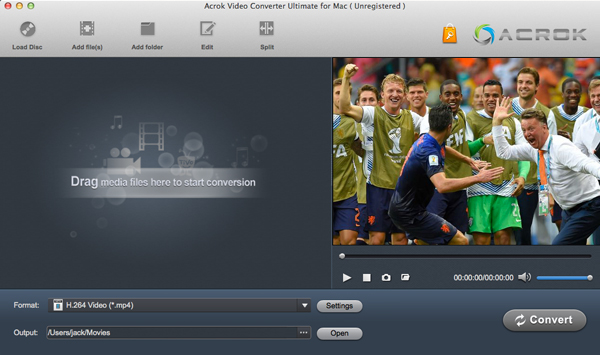
Open Acrok Video Converter Ultimate. Click the Add Files button on the main interface to load your M3U8 video file from your computer or other devices such as USB drives or camcorders. Alternatively, you can directly drag and drop the file into the main interface. Batch conversion is supported, so you can add multiple files simultaneously for conversion.
Step 3: Select ProRes as the Output Format
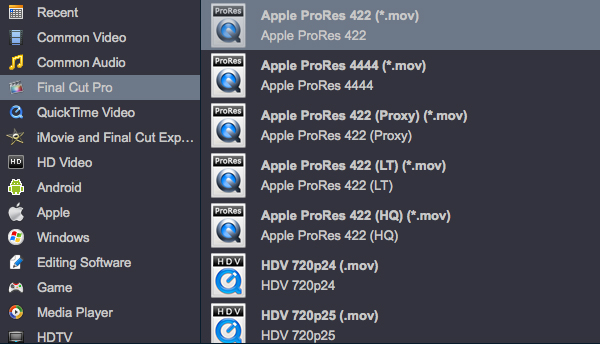
Click the Format drop-down menu to open the output format options. Navigate to the video format category and select MOV as the container format. Then, within the encoding settings, choose Apple ProRes from the codec options. Acrok supports ProRes 422 and other ProRes variants suitable for professional editing.
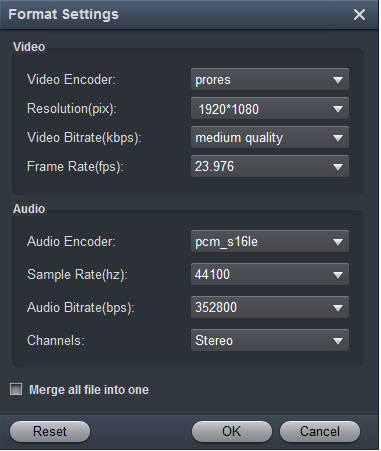
For users who need more precise control, click the Settings button next to the format selection to customize output parameters such as bitrate, frame rate, resolution, and other encoding details.
Step 4: Configure Output Settings (Optional)
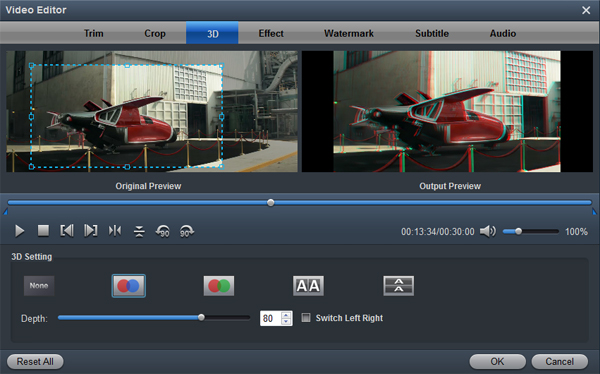
If you wish to apply any video editing operations before conversion, click the Edit button. This opens a set of editing tools that allow you to:
- Trim – Cut out unwanted segments from the beginning or end of the video.
- Crop – Adjust the frame size to remove black margins or focus on specific areas.
- Effect – Adjust contrast, brightness, and saturation, or apply different movie styles.
- Watermark – Add image or text watermarks to your video.
- Audio – Replace or remove the audio track from the video file.
- Subtitle – Add SRT, ASS, or SSA subtitle tracks.
Step 5: Choose Output Destination and Start Conversion
In the Output menu, select the folder where you want the converted file to be saved. Once all settings are configured, click the Convert button to begin the conversion process.
Step 6: Locate Your Converted ProRes File
After the conversion is completed, click the Open button to access the folder containing your converted ProRes video file. The file is now ready for import into your preferred video editing software.
Alternative Free Desktop Options
If you are unwilling to pay for software, there are free desktop alternatives worth considering:
FFmpeg Batch AV Converter: This is a free, open-source graphical user interface for FFmpeg that supports ProRes encoding. It can process M3U8 URLs and batch convert videos to various formats, including ProRes. Key features include unlimited batch processing, hardware acceleration support (NVENC, QuickSync, AMD VCE), and the ability to download M3U8 URLs directly. The main drawback is that it requires some technical knowledge to configure properly and lacks the polished user interface of commercial software.
Conclusion
Converting M3U8 to ProRes online for free presents significant challenges. Most free online converters, including Convertr.org and 88box, do not support ProRes output and impose various limitations such as file size restrictions, privacy concerns, and slow processing speeds.
For those who require ProRes output for professional video editing, Acrok Video Converter Ultimate is the strongly recommended solution. While it is not free, it offers a free trial and provides direct M3U8 to ProRes conversion with hardware acceleration, batch processing capabilities, and built-in editing tools. The software’s user-friendly interface and professional-grade output quality make it well worth the investment for regular video editors.
If budget is a primary concern, FFmpeg Batch AV Converter provides a free open-source alternative for users comfortable with more technical software.
Regardless of which tool you choose, ensure that your source M3U8 file is accessible and that you have sufficient storage space for the resulting ProRes file, which can be significantly larger than the original stream due to the high-quality nature of the ProRes codec.

Leave a Reply