
Looking for a reliable MKV to ProRes Converter to bring your MKV files into professional editing software like Final Cut Pro, Premiere Pro, or DaVinci Resolve? In this guide, you’ll learn how to convert MKV to ProRes 422 for visually lossless, high‑performance editing with an ideal balance of quality and file size, as well as how to convert MKV to ProRes 4444 when you need the highest color fidelity (4:4:4) and alpha channel support.
When processing video for post‑production, format conversion is often an unavoidable step. If you’ve ever tried to import an MKV file directly into Final Cut Pro or DaVinci Resolve, you may have encountered issues like unrecognized files, playback lag, or even software crashes. This is essentially the “compatibility gap” between container formats and professional editing workflows. This article will detail MKV and Apple ProRes, explain why you need to convert MKV to ProRes, recommend an efficient and easy‑to‑use tool – Acrok Video Converter Ultimate – walk you through the conversion steps, and finally clarify the software’s pricing (it is not free, but a free alternative is also provided).
About MKV
MKV (Matroska Video) is an open‑standard, completely free multimedia container format. Unlike common containers like MP4 or AVI, MKV can hold an unlimited number of video, audio, picture, or subtitle tracks within a single file, and supports multiple codecs simultaneously. Its design goal is to be a unified format for storing movies, TV shows, and other multimedia content, allowing various video codecs, more than 16 audio tracks, and multi‑language subtitle streams to all be encapsulated in one file.
Thanks to this remarkable flexibility, MKV is highly popular among HD video enthusiasts. It can hold advanced compression codecs like H.264 or H.265, balancing quality and file size. It also supports chapter markers, metadata, and menu systems, making it ideal for storing and sharing Blu‑ray rips and high‑definition media.
However, MKV is not a compression format but a container – a “wrapper” around the actual audio/video data. Because its technical structure is relatively complex and its open‑source nature leads to many implementation variations, MKV is not natively supported by all video editing software.
About Apple ProRes
Apple ProRes is a “visually lossless” video codec developed by Apple specifically for professional post‑production. Since Apple introduced ProRes 422 in 2007, it has become a de facto industry standard.
The ProRes family includes several variants for different use cases. ProRes 422 (including standard 422 and 422 HQ) uses 10‑bit color depth and 4:2:2 chroma subsampling, offering an excellent balance between quality and file size – ideal for most editing and color grading. ProRes 4444 goes further, supporting up to 12‑bit 4:4:4:4 chroma subsampling plus an alpha channel, making it suitable for high‑end keying, visual effects, and premium color grading.
Unlike common interframe codecs such as H.264 or H.265, ProRes uses intraframe compression – each frame is encoded independently. This means your editing software can instantly read any frame without decoding previous or future frames, resulting in extremely smooth playback and responsive editing. As a result, ProRes is widely used for video acquisition, editing, color grading, mastering, and archiving. Almost all major NLEs (Premiere Pro, DaVinci Resolve, Final Cut Pro) and many professional cameras support ProRes.
Why Convert MKV to ProRes?
Given the strengths of MKV and the editing‑focused nature of ProRes, the core reasons for conversion are clear.
First, solve compatibility issues. Most professional video editing software (Final Cut Pro, Avid, DaVinci Resolve, Adobe Premiere Pro) does not natively support MKV. Trying to import an MKV file often leads to failed reading, choppy playback, or crashes. ProRes, as a widely accepted mezzanine codec, is perfectly supported by all major NLEs, allowing you to seamlessly integrate the converted file into your post‑production pipeline.
Second, improve editing performance. Many MKV files contain long‑GOP compression codecs like H.264 or H.265, which are demanding to decode – especially when scrubbing the timeline, working with multiple tracks, or applying effects. ProRes’s intraframe nature makes every frame a complete picture, so the editing software can respond extremely quickly, delivering smooth playback even with multi‑layer timelines and high bitrates.
Third, retain higher quality and color information. Professional post‑production relies on color grading and effects. ProRes supports 10‑bit or 12‑bit color depth and richer chroma subsampling, preserving more detail when adjusting exposure, applying color grades, or keying. In contrast, 8‑bit compressed formats often reveal banding or artifacts under heavy grading.
Fourth, facilitate multi‑software collaboration and archiving. A typical production workflow involves multiple stages (editing, VFX, color, audio) and different software tools. ProRes, as a highly compatible mezzanine codec, can be passed between professional applications without repeated transcoding, minimising quality loss and greatly improving collaboration efficiency.
Recommended Tool: Acrok Video Converter Ultimate
Choosing the right conversion tool is critical. Here we recommend Acrok Video Converter Ultimate.
Acrok Video Converter Ultimate is a feature‑packed video converter that can convert videos, Blu‑ray discs, and DVDs to various digital formats. It supports loading videos up to 8K, 6K, 4K, and full HD, including MP4, MKV, AVI, WMV, and many others, and can convert them to virtually any output format you need.
Regarding professional codec support, Acrok Video Converter Ultimate excels. It can output ProRes MOV (including ProRes 422 and ProRes 4444 variants) as well as other professional editing codecs like DNxHD. This means you can complete the entire MKV‑to‑ProRes conversion in one application, without switching between multiple tools.
Beyond core conversion, Acrok Video Converter Ultimate offers many helpful features:
- Built‑in video editing: Trim (set start/end time), crop (adjust aspect ratio), merge multiple clips, add watermarks, etc., before conversion.
- Batch conversion: Import multiple MKV files at once and convert them in batch – greatly improving efficiency.
- Adjustable parameters: Customise video encoder, resolution, frame rate, bitrate, and other advanced settings to meet professional quality requirements.
- Hardware acceleration: Supports NVIDIA and AMD hardware acceleration to significantly speed up conversion.
- Intuitive interface: Clean layout and well‑organised functions make it easy for first‑time users to get started.
Step‑by‑Step Conversion Guide
Below are the detailed steps to convert MKV to ProRes 422/4444 using Acrok Video Converter Ultimate.
Step 1: Download and install the software.
Visit the official Acrok website, download, and install Acrok Video Converter Ultimate on your computer (Windows and macOS are supported). Launch the software after installation.
Step 2: Import MKV source files.
Click the “Add File” button or simply drag and drop MKV files into the Apple ProRes Converter window. Acrok supports batch import – you can add multiple MKV files at once.
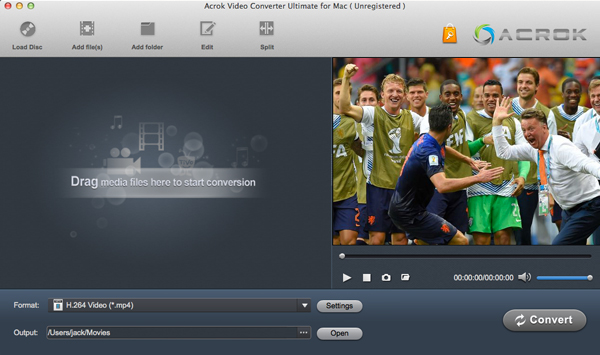
Step 3: Choose ProRes as the output format.
In the output format selection area, locate the ProRes MOV related options. Choose the appropriate ProRes variant based on your needs:
- Select ProRes 422 (or ProRes 422 HQ): Ideal for most editing and grading scenarios – the best choice for daily post‑production.
- Select ProRes 4444: Use when you need the highest colour fidelity or an alpha channel for advanced VFX and high‑end grading.
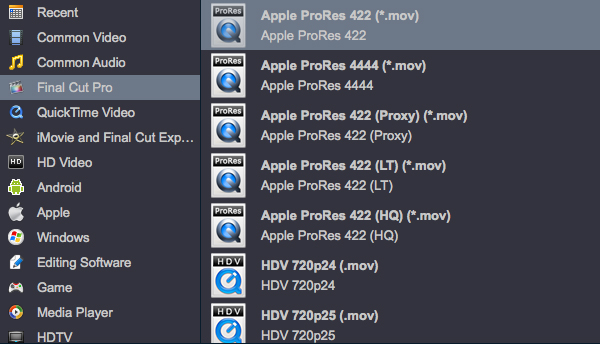
Step 4: Adjust output parameters (optional).
If you need fine control over output quality, click the “Settings” button to open the advanced settings panel. Here you can adjust resolution, frame rate, bitrate, audio sample rate, etc., to match your project requirements.
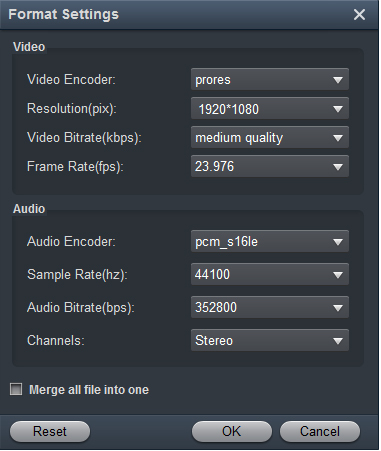
Step 5: Start conversion.
Confirm all settings, choose an output folder, then click “Convert”. The software will begin the conversion task. If you selected multiple files, use batch conversion to process all tasks at once, saving significant time. After conversion, you will find the ProRes‑encoded MOV files in the target folder – ready to be dragged into Final Cut Pro, Premiere Pro, DaVinci Resolve, or any other NLE for smooth post‑production.
Notes on Software Pricing & Free Alternative
It is important to clarify that Acrok Video Converter Ultimate is a paid application, not free. Its lifetime license is approximately $55.30. While not cheap, it offers a mature, stable, and fully featured video conversion solution – from basic format conversion to advanced video editing, Blu‑ray/DVD processing, and hardware acceleration – covering virtually all video format processing needs for individual creators and small studios.
If you are on a tight budget, there is a completely free yet powerful alternative: Shutter Encoder. This is a professional‑grade transcoding tool based on FFmpeg, developed by professional video editor Paul Pacifico. It is open‑source and completely free. Unlike HandBrake, Shutter Encoder focuses on post‑production workflows and fully supports Apple ProRes, Avid DNxHD, and other professional editing codecs. Its key features include:
- Professional codec support: Native support for all ProRes variants (422, HQ, 4444, etc.), allowing direct MKV‑to‑ProRes MOV conversion.
- Lossless rewrapping: Provides a “Rewrap” function that can change MKV to MOV or MP4 containers without re‑encoding – extremely fast and quality‑preserving.
- Post‑production tools: Built‑in video stabilisation, subtitle burn‑in, loudness normalisation, image sequence conversion, and more.
- Cross‑platform: Works on Windows, macOS, and Linux.
If you convert frequently and want a streamlined, professional workflow with support, Acrok Video Converter Ultimate is a reliable time‑saver. If you have no budget or only need occasional conversion, Shutter Encoder is an excellent free choice. Regardless of which tool you choose, after converting MKV to ProRes you will leave compatibility problems behind and enjoy smooth, efficient professional editing.

Leave a Reply