

Unlock seamless post-production workflows by converting MXF (Material eXchange Format) files into Apple ProRes 422 or ProRes 4444. MXF is a common container used in broadcast cameras (such as Sony, Panasonic, and Canon), but it can be incompatible or sluggish to edit natively in NLEs like Final Cut Pro, Premiere Pro, or DaVinci Resolve.
In this guide, you’ll learn how to transcode MXF to Apple ProRes 422 for visually lossless, high-performance editing with an ideal balance of quality and file size. For advanced color grading, visual effects, or alpha channel support, we cover the conversion to ProRes 4444, which retains the highest color fidelity (4:4:4 chroma subsampling). The article includes step-by-step methods using FFmpeg, EditReady, Media Encoder, and hardware-accelerated converters, while preserving timecode, audio tracks, and metadata. Say goodbye to playback lag and compatibility issues—transform your MXF footage into ProRes for a smooth, professional editing experience.
If you are shotting lover, you may like editing MXF video files on computer. How to edit MXF on Mac? You may choose Final Cut Pro, DaVinci Resplve or iMovie to edit MXF video files on Mac. It’s a pity, these editing software can’t import MXF files form Canon, Sony, Panasonic, Nikon etc. For editing MXF on Mac, you have to transcode MXF to Mac editing software compatible format. Apple ProRes .mov foramt is best format. So, before import MXF to Final Cut Pro, DaVinci Resplve or iMovie on mac, you need to convert MXF to Apple ProRes 422 or Apple ProRes 4444 on Mac.
What is MXF?
MXF is a container format for professional digital video and audio media defined by a set of SMPTE standards. It’s encoded with any of a variety of codecs. Final Cut Pro, DaVinci Resolve and iMovie doesn’t support MXF footage importing native. How to edit MXF files on Mac? You need an Apple ProRes Converter.
About Apple ProRes Converter for Mac
Apple ProRes Converter is a professional MXF to ProRes422/4444 converter. You can transcode 4K MXF, 1080P MXF to ProRes 422 or ProRes 4444 for editing software importing. In addition, you can convert MXF to any format. You can play the converted MXF video on iPad, iPhone, Xbox Series X, PlayStation 5 etc. Want to share your MXF video with your friend? You can transcode MXF to YouTube FLV via this Mac MXF to ProRes Converter.
Free download MXF to Apple ProRes Converter
If you want to edit MXF video files on Windows or convert MXF to ProRes codec on Windows, you can free try the Windows Version MXF to ProRes Converter.
How to import MXF to Final Cut Pro with ProRes codec on Mac?
Below are simple guides for converting MXF to ProRes 422. Please download this Mac MXF to Final Cut Pro ProRes converter and launch it after installing it.
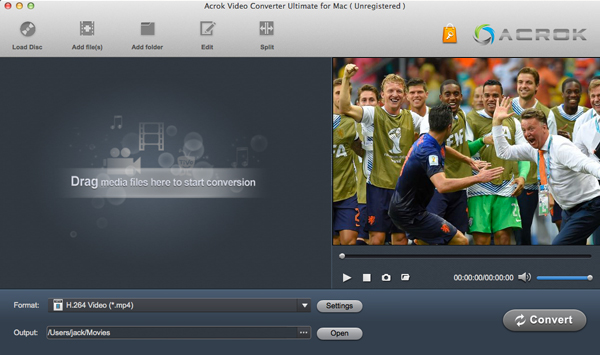
Step 1: Add MXF video into MXF to ProRes Converter
After run this powerful Mac MXF to ProRes converter, you can click add video icon to import MXF video into this program from Camcorder or your computer.
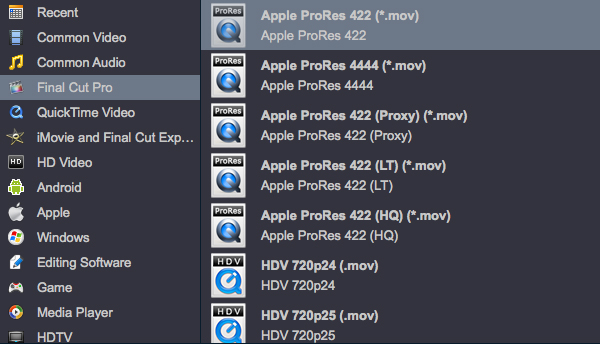
Step 2: Choose Apple ProRes 422 MOV as output format
This step can help you transcode MXF to 1080P ProRes MOV video. Click “Format” bar, choose “Final Cut Pro > Apple ProRes 422 (*.mov) “. This is the best format for Final Cut Pro, DaVinci Resolve or iMovie editing.
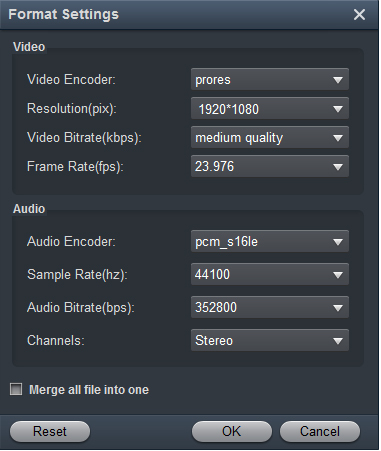
Step 3: If you like, you can adjust video and audio parameters by clicking “Settings” button.
Step 4: Transcode MXF to Apple ProRes via Apple ProRes Converter
At last, you need to click the convert button and the MXF to ProRes converter for Mac will start the MXF to ProRes 422 MOV conversion. And with this Mac MXF to ProRes converter, you need not wait long time before the conversion finished. After the conversion, you can click “Open” button to get the Final Cut Pro compatible ProRes videos, and with them, you can freely import MXF to Final Cut Pro without any rendering.
Leave a Reply